Introduction
Accessing MKA CMS
How to upload a news article?
How to upload an event?
Department Pages
Introduction
The following guide explains how to upload various content on to the main Majlis Khuddamul Ahmadiyya website. This guide is specifically aimed at National Department, Regional Nazim Isha’at.
For any questions, comments or suggestions, please contact us on [email protected].
In this guide:
- you will learn how to manage news articles.
- you will learn how to manage events.
- you will learn how to manage departmental pages.
Requirements
- You must have an MKA email address and Google login set up before continuing.
- MKA content management facility is only available to Local Qaideen, Regional Nazims Ishaat and National Amila members.
Accessing MKA CMS
A full detail breakdown on access CMS can NOT be provided publically. All guides and information to upload content is available on this page.
Login using your Google account at khuddam.org.uk/login.
How to upload a news article?
Managing news articles
Applicable users
- Local Qaid
- Regional Nazim Ishaat
- National Amila member
Instructions
1. Login using your Google account at khuddam.org.uk/login.
2. Once logged in, you will arrive at your dashboard.

3. Tailored to your role within the Majlis.
- As a Regional Nazim Ishaat, you will be shown the following information below. This can be done by selecting the relevant checkbox.
- As a Regional Nazim Ishaat, you can add news for your region or any qiadat in your region. The region and qiadats will be shown accordingly.
- As a national amila member, you can add news for any region, qiadat or even nationally. To add news nationally, do not select any region or qiadat.
4. Add Title
You will the need to add a news title in the available text area as shown
below on the image

5. Add content
- IMPORTANT: ignore edit with elementor.
- Scroll towards the Introduction text area, which will allow you to add some text regarding the article and some images if you have any available.
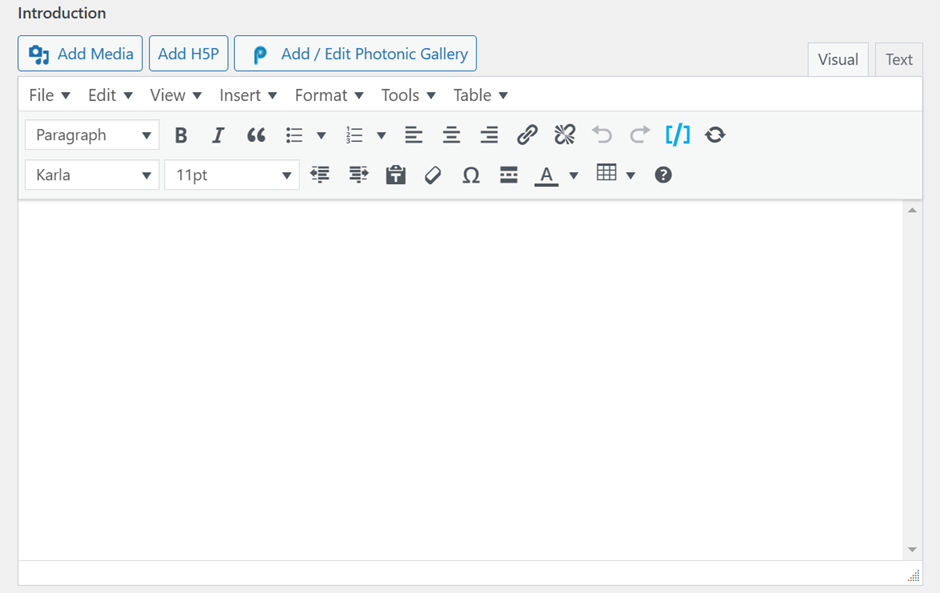
- Adding a gallery:
- Click the button add /edit photonic gallery

- Select WordPress with white and black logo with a huge W inside the
circle and click next 
- Chose photos from Media library -> Before doing this, you must make sure your Images are added into the media library by simply dragging and dropping them.
- Click Next
- The media library popup box will appear, you must then select the images you want to add into your gallery. And click select.

- Choose the square grid layout for the gallery and click next.

- On configuring your layout, you can select the first option or a recommendation from the website team is to chose 3 or 4 depending on
the amount of images selected. - Click Next

- At this stage you can copy the shortcode on your screen and simply paste it into the news article
Or
You can simply automatically add it into the Gallery.
Click Insert Gallery 
- Your gallery of images should now appear like the image above.
6. Category Selection:
- One section of the category will be regarding the local or regional qaidats.
- Another section will be departments who require to choose the article
according to the department they’re publishing for.
7. Post Image:
- You then must add a relevant image to the article, this will allow the featured article image to appear on the website.

8.Publishing:
- Scroll to the top of the layout of your article, check it and then hit blue publish button on the right hand side in the square box.

How to upload an event?
Managing Events
Applicable users
- Regional Nazim Ishaat
- National Amila member
Instructions
1. Login using your Google account at khuddam.org.uk/login.
2. Once logged in, head to the events tab on the left.
3. Setup event
- You will the need to add an event title in the available text area as shown below on the image
4. Event’s content
- Ignore edit with elementor and scroll towards the Introduction text area, which will allow you to add some text regarding the events details and some images if you have any available.
5. Event’s Detail

- Add in the event date by selecting the date attribute field, if its an all day event ensure you select all day.

- Add in the location of the event, some locations are preset using the dropdown menu, but some can be added in
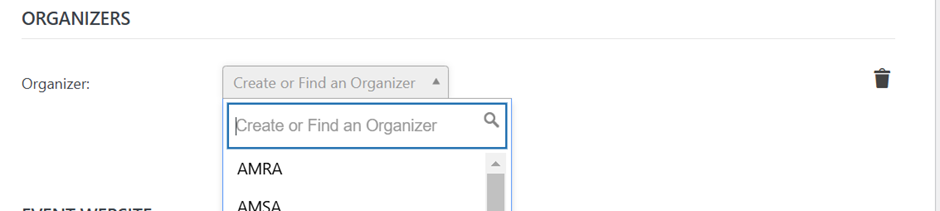
- You MUST add in whether the event is regional or national based
- *This will be automatically listed on the MKA app accordingly
- On right hand side is the featured image box, you are required to have a featured image to be uploaded and shown on the MKA Site

- IMPORTANT: Images for MKA UK Events must be 1280 x 720 px. You can create this image on Canva -> by simply choosing a custom design and adding these dimensions.
6. Event’s Detail’s
- Publish your event, by scrolling to the top and pressing the blue publish button
- Head to events page for live result
Department Pages
Under the new MKA Website update, you must inform [email protected] who will be managing the department pages.
A demo will sent to you via email.